How to read EPUB files
EPUB is the most widely used ebook format. Knowing how to read EPUB files unlocks most free ebooks, library loans and self-published titles.
This guide compares the three main ways to read an EPUB (in a browser, in an app, or on an e-reader), helps you choose between them, and shares a few settings that make long reading sessions more comfortable.
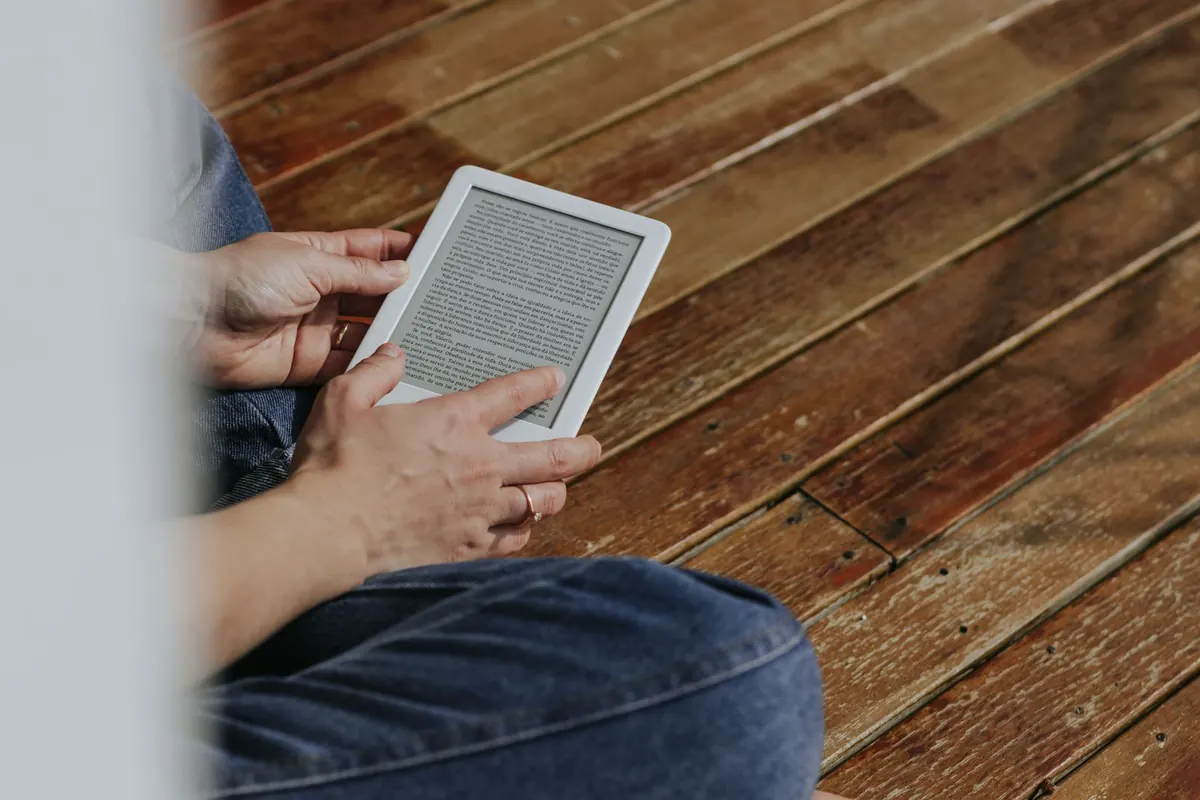
Three ways to read an EPUB
1. In a browser. A web reader such as EPUB Reader Online opens the file on any device with no installation. Drag the .epub onto the page and read with a table of contents, arrow keys and adjustable text size.
The book is processed locally and never uploaded. This is best for one-off reads, shared or locked-down computers, and checking a file quickly.
2. In a reading app. Apple Books, Google Play Books, Calibre, Thorium Reader and similar apps keep a library and remember your place across devices. They add highlights, notes and dictionary lookup, which suits people who read a lot and want everything in one place.
3. On an e-reader. Kobo, PocketBook, Tolino and most other e-ink devices read EPUB natively; copy the file over USB or through the device's cloud service. Kindle is the exception and needs the free Send to Kindle service to convert the file first.
Reading on a computer
On a Mac, Apple Books is already installed. On Windows and Linux, install Calibre or Thorium Reader, or skip the install entirely and open the book in your browser.
Use the keyboard: in most readers, including the browser option, the left and right arrow keys turn pages and Esc closes menus. For a device-by-device walkthrough, see how to open EPUB files.
Reading on a phone or tablet
Phones are the most common place people read EPUBs. iPhone users have Apple Books built in; Android users have Google Play Books plus free apps like ReadEra and Moon+ Reader. Both platforms can also read in the browser without an app.
Detailed steps are in how to read EPUB on mobile and how to read EPUB on iPhone.
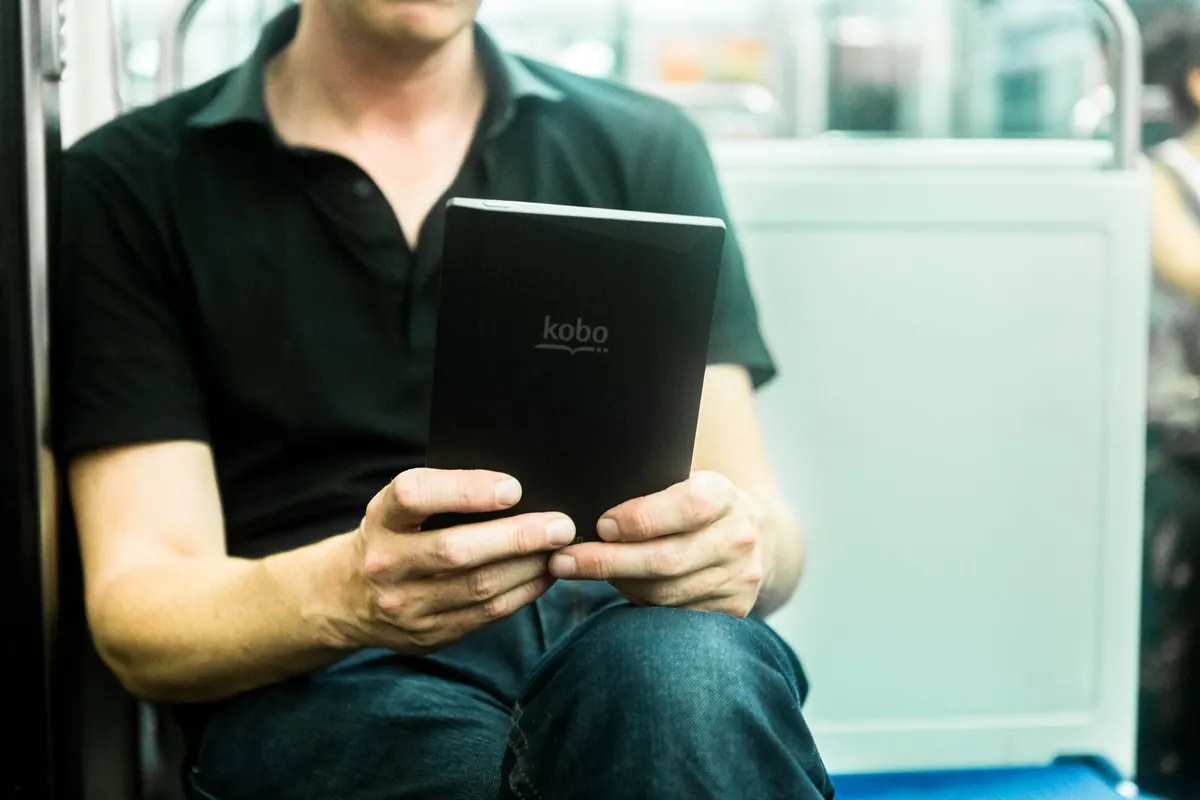
Settings that make reading more comfortable
- Text size. EPUB text reflows, so make it as large as you like without breaking the layout. The browser reader has A− / A+ buttons and remembers your choice.
- Theme. Dark or sepia backgrounds are easier on the eyes at night. Some readers switch automatically with your system theme.
- Scrolling versus pages. Apps usually offer both. Scrolling feels natural on phones; paged mode suits tablets and e-readers.
- Table of contents. Use it instead of swiping through chapters; a good EPUB has nested entries down to section level.
- Resume position. Every reader mentioned here saves where you stopped, including the browser reader, which stores the position locally per book.
Where to find EPUB books
Project Gutenberg offers tens of thousands of public-domain classics as free EPUBs. Standard Ebooks publishes carefully formatted editions of the same works.
Many public libraries lend EPUBs through apps such as Libby. Most independent publishers and authors sell DRM-free EPUBs directly, which you can read in any of the tools above.
A note on DRM
Books bought from major stores are usually DRM-protected and can only be read in that store's own app or device. Everything in this guide applies to DRM-free EPUBs: free classics, library downloads in open formats, and books sold without protection.
If a file refuses to open everywhere, DRM is the most likely reason.
Frequently asked questions
What is the easiest way to read an EPUB file?
Open it in your browser at epubreaderonline.com: drag the file onto the page and it opens immediately with a table of contents. Nothing is installed and the file is never uploaded.
Can a Kindle read EPUB files?
Not directly, but Amazon's free Send to Kindle service converts EPUB files when you upload them, after which they appear in your Kindle library.
Do I need to convert EPUB to read it?
No. EPUB is supported natively by Apple Books, Google Play Books, Kobo and every major reading app, and it can be read in a browser without conversion.